
 By
By How to move a sketch from one face to another? There are two ways to do it. One is a basic lesson taught in the beginning of the SOLIDWORKS Essentials training, while the other is a slick trick only power users know.
In this video, we’re going to show you both ways so you can easily move a sketch (or feature) to a different face.
Moving a sketch to a different face is a common thing to do when working with SOLIDWORKS. It’s so common, in fact, that it’s taught on day one of the essentials training. This happens because the sketch geometry, which is the foundation of a feature, needs to be in 2D space on a planar face or reference plane. This is the first step in creating a feature. The next step is creating the geometry.
The first and more straightforward way to move a sketch to a different face is to right-click on the sketch in the feature tree. From there, you can click the button to “edit sketch plane.” This will highlight the existing face, and all you need to do to move it is to select the new face.
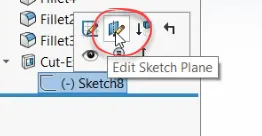
That’s the most straightforward way because you can “discover” it. Meaning, there’s an actual button you could find when you click around with your right mouse button looking for the command. The other method is a trick known to only power users. You can just drag the feature from the feature tree onto the new face by holding the shift key while dragging. It can only be done by dragging from the tree to the new face.

This dragging method is preferred because it allows you to directly place the sketch where you want it. The other method typically ends up with errors you need to fix by editing the sketch geometry after you’ve changed its location. There you have it. Two ways to change the location of your sketch geometry. Which will you choose?

Related Software
SOLIDWORKS
SOLIDWORKS 3D CAD software includes design, simulation, technical communication, and data management features. Powering innovative design with specific tools that help you work more efficiently so you can make better design decisions.