
 By
By Configurations in SOLIDWORKS are like different variations of a part or assembly that can be created within the same file. They are used to manage different versions of a design without having to create multiple separate files for each version. Configurations are incredibly useful for designing parametric models that can be easily modified and adapted for different scenarios. In this blog, we will explore how to use SOLIDWORKS configurations and what they can be used for.
Creating a single configuration in SOLIDWORKS
Creating configurations in SOLIDWORKS is a straightforward process. You can start by designing your part or assembly in the default configuration, which is usually named “Default” or “Default Configuration”. Once your initial design is complete, you can create additional configurations by right-clicking on the configuration tab in the Configuration Manager, selecting “Add Configuration”, and giving it a unique name. This is useful for creating a single configuration.
Creating multiple configurations in SOLIDWORKS
If you need to create multiple configurations, I prefer to use the “modify configurations” option by right clicking on a feature. You can double click on additional features or dimensions to add to the table.
In SOLIDWORKS 2022 and newer this table is created automatically for anything that has been configured. You can access it from the configuration tab and in the tables folder.
Creating a part family in SOLIDWORKS
The final way to create configurations is by using Insert > Tables > Design Tables. This will create an excel table and is very powerful especially when needing to create a lot of configurations or a part family. A useful tip is to close the table and then reopen it in a separate window. You will also find this table in the configuration manager tables folder.


Modifying your part or assembly
Once you have created multiple configurations, you can use them to modify various aspects of your part or assembly.
For example, you can change the dimensions, features, materials, or appearances of a part or assembly in each configuration. You can also suppress or unsuppress features, components, or mates specific to each configuration, allowing you to create different variations of the same design.
Use cases of configurations in SOLIDWORKS
Configurations can be used in many different ways in SOLIDWORKS. Here are some common use cases:
- Design Iterations: Configurations allow you to create different versions of a design with slight variations, such as different sizes, shapes, or features, without having to start from scratch. This makes it easy to iterate and explore different design options within the same file.
- Assembly Variations: Configurations are useful for creating different variations of an assembly, such as different configurations of a machine with different options or accessories. You can easily switch between configurations to visualize and analyze different assembly configurations.
- Manufacturing Variations: Configurations can be used to model different manufacturing variations of a part, such as different machining operations, tolerances, or surface finishes. This allows you to create a single design that can be used to generate different manufacturing instructions or CNC programs.
- Documentation: Configurations can be used to create different views or exploded views of an assembly for documentation purposes. For example, you can create an exploded view of an assembly to show how it is assembled or disassembled, and then create a configuration for a fully assembled view for documentation or presentation purposes.
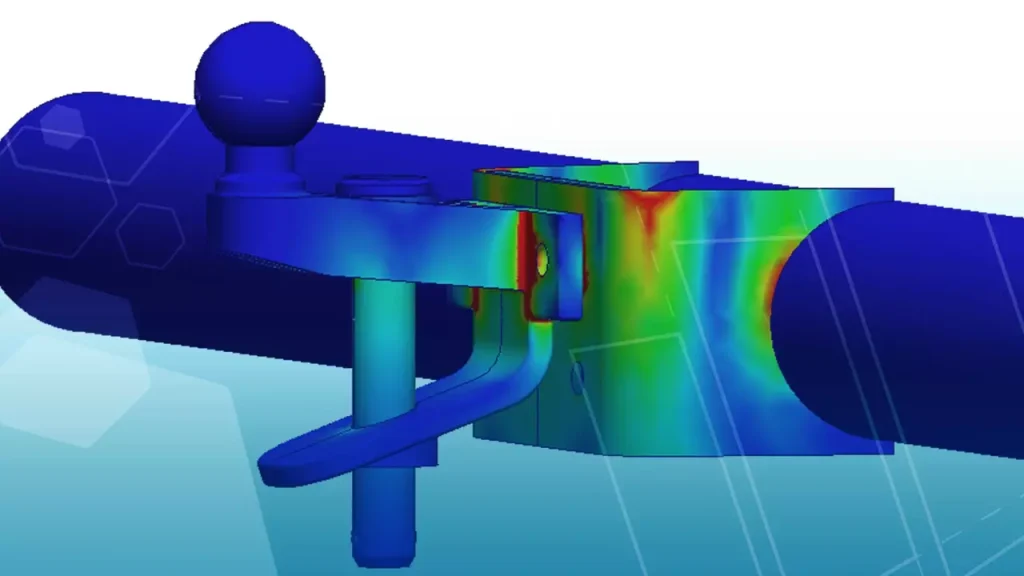
- Simulation: Configurations can be used to model different load conditions or boundary conditions in a simulation study. You can create different configurations with different loads, fixtures, or mesh settings, and then analyze and compare the results to understand the behavior of the design under different conditions.
Conclusion
Configurations are a powerful feature in SOLIDWORKS that allow users to create and manage different variations of a part or assembly within a single file. They are useful for design iterations, assembly variations, manufacturing variations, documentation, and simulation. By leveraging the capabilities of configurations, SOLIDWORKS users can create parametric models that are flexible, adaptable, and efficient in managing different design scenarios. So, if you’re using SOLIDWORKS for your 3D modeling needs, make sure to explore and utilize the power of configurations to streamline your design process and create versatile models.

Related Software
SOLIDWORKS
SOLIDWORKS 3D CAD software includes design, simulation, technical communication, and data management features. Powering innovative design with specific tools that help you work more efficiently so you can make better design decisions.