
 By
By One of the benefits of SOLIDWORKS is how much the tool can be configured so that users minimize repeated tasks. A lot of configuring can be done in the Document Properties of a SOLIDWORKS document, whether it is a part file, assembly file, or drawing.
With Document Properties, users can ensure consistency in models and drawings by allowing the document to use the same settings (standards, units, fonts, image quality, etc.). This article will explain how to open the document properties in SOLIDWORKS and what settings users can find there.
How to Open Document Properties in SOLIDWORKS
Before opening the document properties, a document must be open. Choose either a part, assembly, or drawing to get started. Once a SOLIDWORKS document is open, there are different ways to access the document properties.
The typical way to access the SOLIDWORKS Document Properties:
- Click the drop-down next to the gear icon in the SOLIDWORKS toolbar at the top of your screen.
- Select Options.

 Opening the SOLIDWORKS System Options from the gear icon
 - In the pop-up window, switch to the Document Properties tab.
 Selecting the Document Properties tab in the System Options window
Alternatively, the SOLIDWORKS Document Properties can be accessed in the following way:
- Select the Tools menu at the top bar of SOLIDWORKS.
- Click on Options from the list that appears.
- In the pop-up window, switch to the Document Properties tab.

Using the Tools menu to access the SOLIDWORKS Options
What does the SOLIDWORKS Document Properties Control?
The Document Properties tab provides users with lots of flexibility when it comes to displaying information.
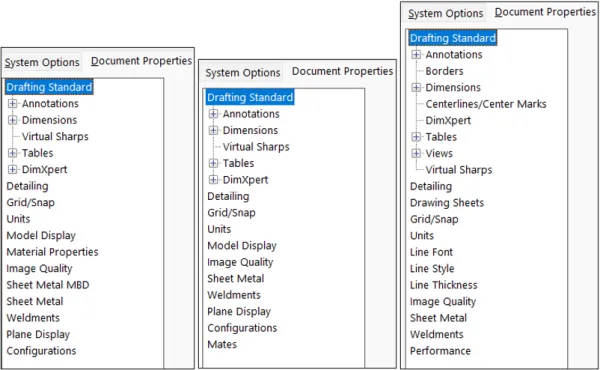
Properties available in parts, assemblies, and drawings
The different properties on the left side of the Document Properties tab can vary slightly between parts, assemblies, and drawings since there are different capabilities available in each document type.
What Are the Sections in the Document Properties?
SOLIDWORKS Drafting Standards
The first thing in the Document Properties list is Drafting Standard. Users can choose from a list of standards to use or build from (ANSI, ISO, DIN, JIS, BSI, GOST, GB).

The Drafting Standard section of the Document Properties
If a standard has been modified through the Drafting Standard tree, most changes cause the Overall drafting standard to show as modified.
Detailing Options
The Detailing section allows users to set default drafting and annotation settings, such as display filters and reference marks.
Grid/Snap Control
Grid/Snap lets users set up a sketch grid and snapping behavior. This is useful if you are regularly placing sketch entities at regular intervals instead of freely placing them.
Units Section
The Units section controls the unit system and precision of a template, letting users select between decimal or fractional dimensions.
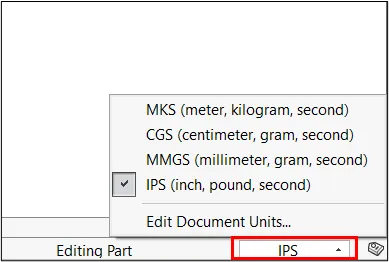
Quickly changing the SOLIDWORKS document’s unit system
The fastest way to access the unit properties is to click on the defined unit in the bottom right corner of the SOLIDWORKS window and select Edit Document Units. Users can also quickly select from some default unit types.
File Image Quality
Image Quality lets users specify quality options for image display. Setting the quality settings too high can cause performance issues. It is recommended to balance the image quality with performance.
Other Document Property Tabs
The other tabs in Document Properties will vary depending on the document open. The key difference between the System Options and Document Properties tabs is that the document properties are specific to the open document, while System Options are applied globally.
Another difference is that the document properties can be saved in a SOLIDWORKS template for future repeatability.
Key Takeaways
Knowing how to open Document Properties in SOLIDWORKS can help you save time when future documents are created. The Document Properties have a variety of settings that can be changed, which will only affect the open document.
This makes sure that files maintain the consistency necessary for each project, whether you’re working alone or with a team.

Related Software
SOLIDWORKS
SOLIDWORKS 3D CAD software includes design, simulation, technical communication, and data management features. Powering innovative design with specific tools that help you work more efficiently so you can make better design decisions.