
How to Center Dimensions by Default in SOLIDWORKS Drawings

Clear and consistent drawings are crucial for both manufacturing and effective communication. One common request from designers is to have dimensions centered by default in SOLIDWORKS drawings.
Centered dimensions improve readability and help maintain drawing standards. In this tutorial, I’ll explain how to update the settings to center dimensions in SOLIDWORKS drawings and discuss how to use them with SOLIDWORKS templates.
Why Center Dimensions in a SOLIDWORKS Drawing?
When dimensions are offset or misaligned, drawings can look cluttered and confusing. Centering dimensions ensure the text is positioned neatly between extension lines, making it easier for machinists and engineers to interpret. This is particularly useful for linear dimensions.
Default SOLIDWORKS Dimension Behavior
By default, SOLIDWORKS places dimension text above the dimension line and offsets it from the center in the location where you place it. While this works fine, it may not meet your company’s drafting standards. Thankfully, SOLIDWORKS allows you to customize this behavior through Document Properties.
How to Center Dimensions in SOLIDWORKS
Centering dimensions can be done in multiple ways. The first method applies to any new dimensions that will be added going forward and can be saved to a drawing template for future projects. The second method applies to dimensions already placed in the drawing that you want to center.
How to Center New Dimensions
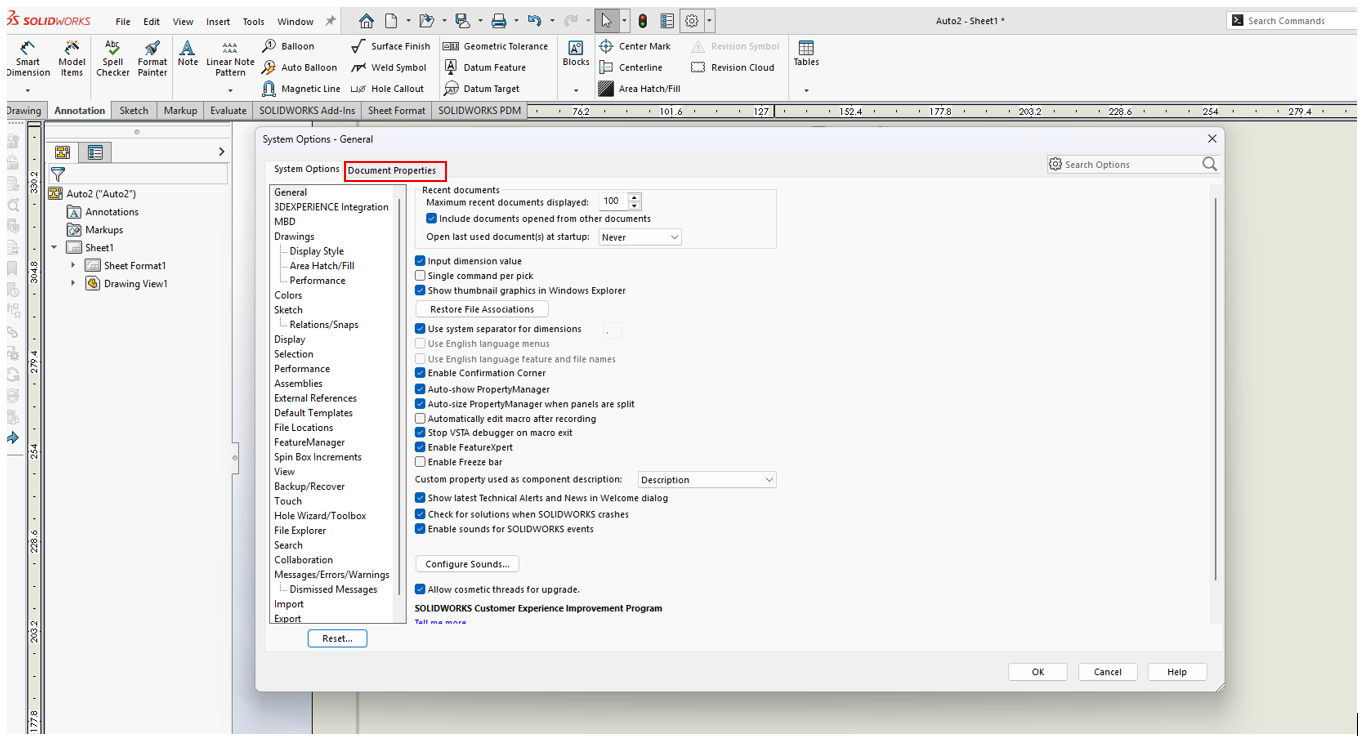
- Open SOLIDWORKS System Options by using the Gear icon or going to Tools > Options.

Opening the SOLIDWORKS System Options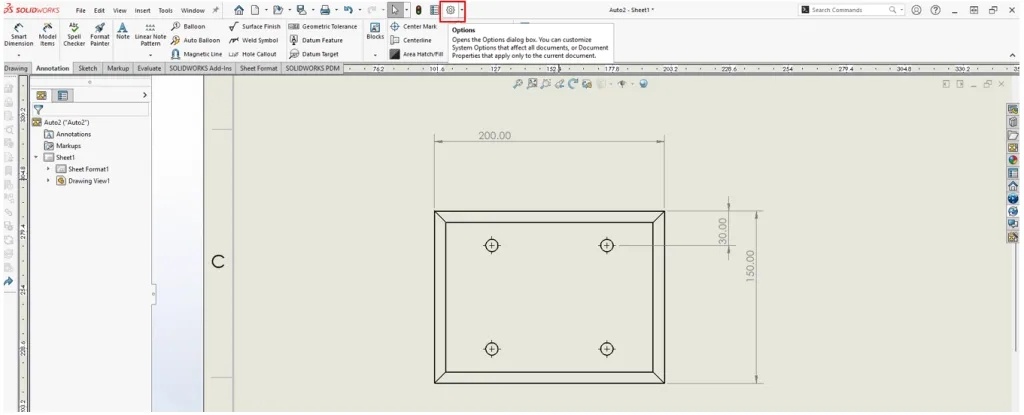
- In the Systems Options dialog, select Document Properties.
Switching to the Document Properties tab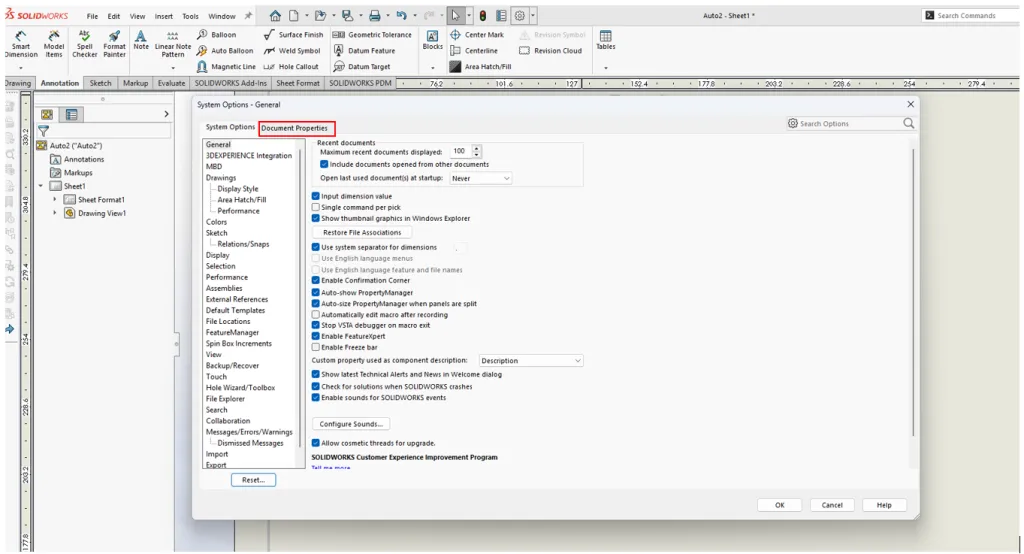
- Navigate to Dimensions and scroll down to the bottom of the window, and select Center between extension lines. This setting will center all newly added dimensions.
Setting to center dimensions by default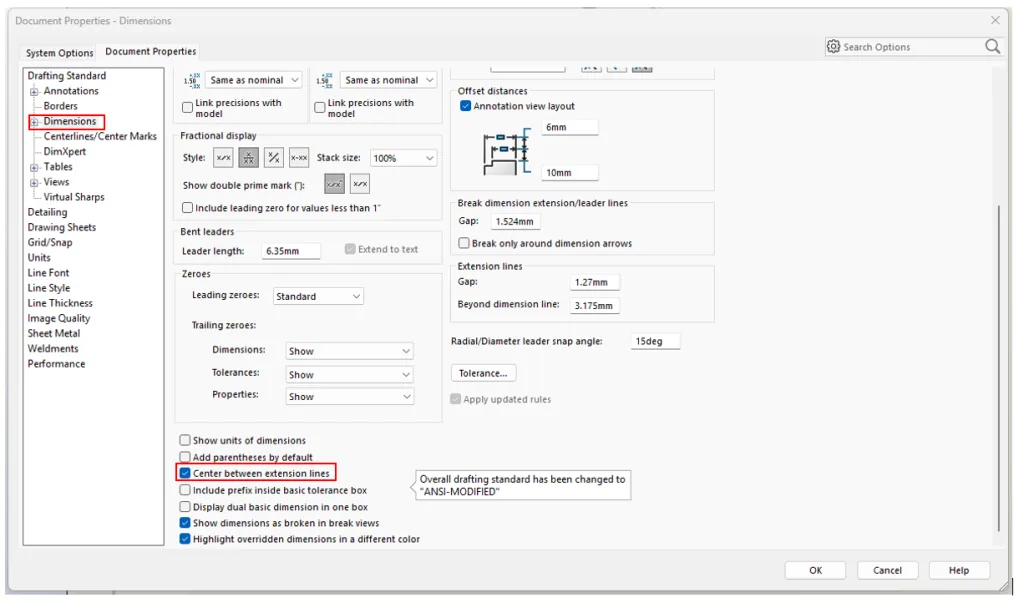


How to Center Existing Dimensions
- Select all of the dimensions you’d like to select while holding the Alt key.
- Click the Center dimension button in the Dimension Property Manager.
Centering existing dimensions in a SOLIDWORKS Drawing
- To update the dimensions so that they are not on top of the dimension line, go to Document Properties again and expand the Dimensions section to include the additional options.
- Click on the Linear option on the left and then select the text position you’d like.
Setting the position of the dimension text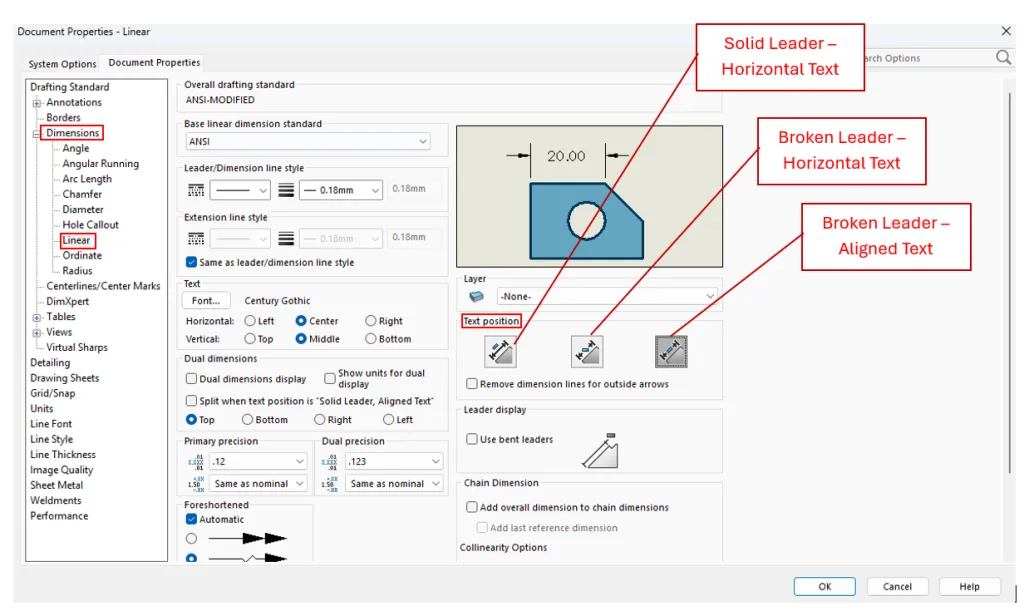
- Adjust additional dimensions such as angles, chamfers, and diameters as desired.


Using Drawing Templates to Maintain Consistency
SOLIDWORKS drawing templates are the best way to enforce standards across your team. With a template, you can adjust the Document Properties to maintain your drawing styles, dimension setup, and even prebuild drawing views.
How to Create a SOLIDWORKS Drawing Template
- Open one of the existing SOLIDWORKS drawing templates by clicking File > New and selecting a template.
- With that open, click the Options button and go to the Document Properties.
- Adjust the Document Properties to match what you’d like to have in your template. These options include fonts, leader styles, and the dimension options mentioned above.
- Use File > Save As to save the new drawing template. Rename the file and save it in one of your template locations that is accessible by your team.

Additional Best Practices with SOLIDWORKS Drawing Training
To learn best practices for setting up SOLIDWORKS drawings, it’s best to enroll in a formal, instructor-led training course. Our SOLIDWORKS Drawings course teaches you how to create and customize professional drawing templates and sheet formats.
You’ll learn the structure of a drawing document, how to design title blocks, add company logos, define borders, and link notes to properties. The course also covers document properties, units, predefined views, and strategies for saving and testing templates to ensure consistency across your organization.
Centering Dimensions for Added Clarity
Centering dimensions by default in SOLIDWORKS is a simple change that can make a big difference for drawing clarity and professionalism. By adjusting document properties and using templates, you can standardize this setting across your team and save time on every project.

Related Software
SOLIDWORKS
SOLIDWORKS 3D CAD software includes design, simulation, technical communication, and data management features. Powering innovative design with specific tools that help you work more efficiently so you can make better design decisions.