




 By
By Have you ever needed to change or even forgotten the password of the SQL Server System Administrator (SA) account? Maybe the password has been lost or the person in charge of keeping it left the company? In this article I will walk you through three most common ways to change the password and get you back into your SQL SA account.
The first method is to use the current SA password to log into the SQL Server Management Studio and change it. The second method is to use another administrator account to log into the SQL Server Management Studio to reset the password. The third method is to use a command prompt to restart the SQL service in a Single User Mode, reset the password, then restart the SQL service back in Multi-User mode.
Option 1: Using the existing SA password
- Open the SQL Server Management Studio. If you do not have this application, you can download it here – SQL Server Management Studio Download page.

- Log in as the SA user using SQL Server authentication and the current password.
- In the Object Explorer, expand Security and then Logins.
- Double click the SA login.
- Enter the desired password and confirm it.
- Click OK.


Option 2: Using a Windows Account with Administrative Permissions
- Open the SQL Server Management Studio.
- Follow all the same steps as you would in Option 1, but instead log in as the Windows user using Window Authentication.
- In the Object Explorer, expand Security and then Logins.
- Double click the SA login.
- Enter the desired password and confirm it.
- Click OK.

Option 3: Using the Local Administrator Account in Single-User Mode
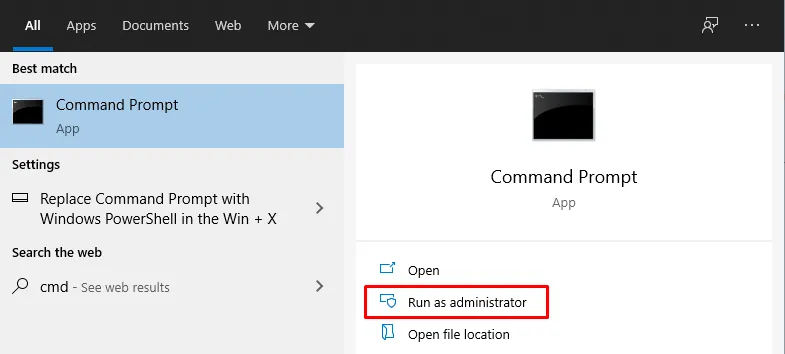
- Open the Command Prompt as an administrator.
- Stop the SQL Instance.
If it is the default instance, type: net stop MSSQLSERVER and press the Enter button.
If it is a named instance, type: net stop MSSQL$InstanceName where “InstanceName” is the dedicated name.
Default Instance
Named Instance
- Start the SQL service in Single-User mode by typing: net start MSSQLSERVER /m”SQLCMD” and press Enter. Note: if using a names instance type: net start MSSQL$InstanceName/m”SQLCMD”
- Connect to the SQL server in the command prompt by typing: sqlcmd and press Enter. Note: if using a named instance type: SQLCMD-S.InstanceName
- Create a new user and password using T-SQL command. Type: Create LOGIN <name> WITH PASSWORD=’<password>’. Replace <name> with the desired username and <password> with the desired password. The single quotes are required. Type GO and press the Enter button.
- Verify the new user has System Administrator permissions by typing: SP_ADDSRVROLEMEMBER <name>,’SYSADMIN’. Replace <name> with the username entered in step 5. Type GO and press the Enter button.
- Exit the SQLCMD by typing Exit and pressing the Enter button.
- Restart the SQL service in regular mode by typing: net stop MSSQLSERVER && net start MSSQLSERVER and press the Enter button. Note: if using a named instance type: net stop MSSQL$InstanceName && net start MSSQL$InstanceName
- Launch the SQL Server Management Studio application and login with the newly created user using SQL Authentication Mode (Similar to Option 1 and Option 2 above)
- In the Object Explorer, expand Security and then Logins.
- Double click the SA login.
- Enter the desired password and confirm it.
- Click OK.


Now that we’ve laid out the different options for resetting the SQL SA password, you can now choose which option works best when resetting your password so you can get back to work faster.

Related Service
Ready to learn more?
Whether you need expert guidance, product support, or simply explore your options, our team is here to help.

