




Using Large Design Review | SOLIDWORKS Large Assembly Best Practices

Large assembly performance is one of the most common topics we discuss with clients, and we often find ourselves providing assembly best practices to increase modeling efficiency.
Many ask, “What are the best practices for working with large assemblies?” or “What defines a large assembly? Is it 500 parts or 5,000 parts?” Most people want a simple answer, but the truth is, it depends.
SOLIDWORKS Hardware Concerns
Performance issues often start with hardware. A 50 part assembly can run slowly on a low-spec machine, while a $10,000 workstation can still struggle with assemblies of 5,000 parts or more. The computer hardware you use definitely has an effect, but it’s not the only factor.
Most clients want to make as few changes as possible and prefer not to upgrade hardware or redesign their assemblies and part files. They want to improve efficiency with what they already have.
Introducing SOLIDWORKS Large Design Review
One tool in SOLIDWORKS that meets these needs is Large Design Review. This mode improves performance by changing how you open and work with assemblies without requiring hardware upgrades or major file changes.

SOLIDWORKS Large Design Review
Large Design Review is a mode in SOLIDWORKS that allows you to open assemblies very quickly, no matter how large they are or how they were saved. It is designed for efficiency and works without changing your hardware or redesigning your files. This makes it the fastest way to open large assemblies and start working with them.
Before we look at why Large Design Review is so fast, it helps to understand the normal process SOLIDWORKS uses to open an assembly. The difference between these two workflows is what makes Large Design Review so powerful.
How Assemblies Normally Open in SOLIDWORKS
When you double-click an assembly file, SOLIDWORKS uses a standard process to load it. By default, the file opens in either Lightweight or Resolved mode. Resolved mode is the full load process, and it involves several steps that check and update every component before the assembly is ready for editing.

Opening a SOLIDWORKS assembly in Resolved mode
Here is the workflow for opening an assembly in Resolved mode:
- Open the assembly in SOLIDWORKS.
- Locate and load component files into RAM.
- Check for changes since the last save:
- If changes exist, update out-of-date components.
- If no changes, continue to the next step.
- Locate components and solve mates.
- Perform the first mate pass:
- If the pass fails, repeat mate solving.
- Check if any components have moved:
- If yes, update in-context and assembly features.
- Compute the graphics triangle required for display.
- The assembly is now open for editing.
How SOLIDWORKS Assemblies Open in Large Design Review
The workflow for Large Design Review mode is much simpler than the standard process. Instead of checking every component, updating geometry, and solving mates, this mode focuses only on loading the last saved graphical data from the top-level file. It does not validate or update each subcomponent. This streamlined approach is what makes Large Design Review so fast and efficient.
When you open an assembly in Large Design Review, the software skips the iterative steps used in Resolved mode. It does not calculate every mate or verify every part. Instead, it loads the saved positions and graphics from the last save state and displays the assembly for viewing and basic interaction.
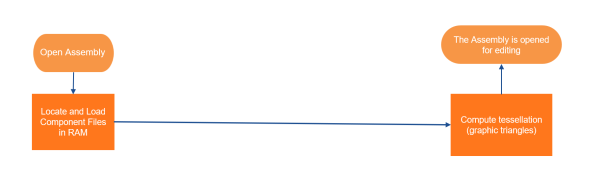
Opening a SOLIDWORKS assembly in Large Design Review
Here is the simplified workflow for Large Design Review:
- Open the top-level assembly file.
- Load the saved positions and graphical data from the last save state.
- Compute the graphics triangle required for display.
- The assembly is now opened and ready for use.
How to Use SOLIDWORKS Large Design Review
Now that we understand the two workflows, the next step is learning how to use Large Design Review. Leveraging this mode requires specific steps even before opening the file. There are three ways to open an assembly in Large Design Review. Two are manual methods, and one is a system option.
Using the Open Dialog:
- Go to File > Open.
- Select your assembly file.
- In the Open dialog, set the Mode to Large Design Review.
- Optionally, check the option to “Edit assembly”. This enables adding standard mates and repositioning components at the top level.
- Click Open.

Using Large Design Review from the Open dialog
Using the Recent Documents section of the Welcome Window:
- Open SOLIDWORKS and go to the Welcome Window.
- In Recent Documents, expand the preview for your assembly.
- From the Mode options, select Large Design Review.
- Optionally, check the option to “Edit assembly”. This enables adding standard mates and repositioning components at the top level.
- Click Open.
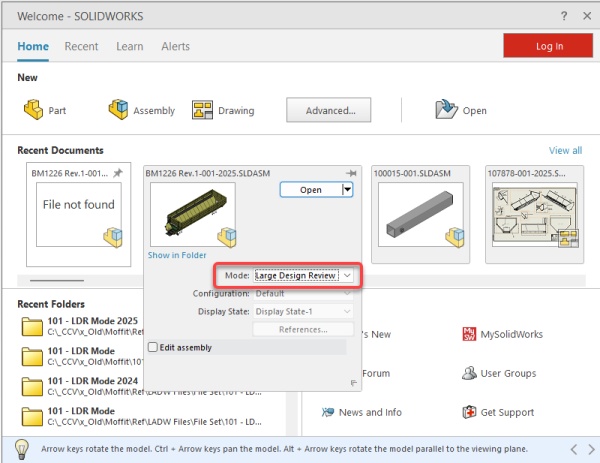
Using Large Design Review from the Welcome Window
Using the System Option Threshold:
- Go to Tools > Options.
- Open System Options, then select the Assemblies section.
- Turn on the Large Design Review option.
- Set the component count threshold. When an assembly exceeds this number of components, SOLIDWORKS will open it in Large Design Review automatically.
- Click OK.
This option will set the threshold based on the number of components in the assembly and is fully automatic. As a result, you should make sure users are aware when Large Design Review is active.

Setting the Large Design Review threshold in the System Options
Available Assembly Tools in Large Design Review
Once the assembly is open in Large Design Review, it loads only graphical data from the last save. Because of this, you do not have access to all the tools in a fully resolved assembly. Instead, you have one toolbar made for Large Design Review. Most tools are for viewing, measuring, and moving through the model.
However, you can also insert components at the top level and apply mates. Standard and advanced mates are supported, but not mechanical mates. Other options let you resolve the assembly or open specific components when needed. For more complex edits, switch to Lightweight or Fully Resolved mode.

Large Design Review tab of the CommandManager
Graphics and Evaluation Tools
- Walkthrough: Move through the assembly like a first-person view.
- Measure: Check distances, angles, and clearances.
- Section View: Cut a section to see inside the model.
- Hide, Show, and Isolate: Turn parts on or off to focus on what you need.
- View Orientation and Display Styles: Change the view or shading style.
- Snapshots: Take a picture of the current view.
- Interference Detection: Find parts that overlap.
Editing and Mode Controls
- Insert Components: Add new parts at the top level.
- Add Mates: Position parts using standard and advanced mates.
- Component Pattern: Repeat parts in a simple pattern.
- Selective Open and Resolve Options: Open or resolve only the parts you need.
- Switch Mode: Change the whole assembly to Lightweight or Resolved for full editing.
Improving SOLIDWORKS Large Assembly Performance
Large Design Review provides the best efforts at improving performance without upgrading hardware or redesigning assemblies and part files. It gives you a way to open and review even the largest assemblies with minimal effort. No hardware changes, no file redesign, and no complicated setup is required. This is the simplest best practice for getting large assemblies open and working quickly.
While Large Design Review is a great start, there are many other ways to improve assembly performance, and that is where TriMech is here to help. Whether it’s through a Large Assembly and Drawing Workshop or by providing a high-level overview of large assembly performance in an Ask An Expert session, our dedicated technical experts can get you the advice you need to increase modeling efficiency.
To get started with increasing large assembly performance, contact us here.

Related Software
SOLIDWORKS
SOLIDWORKS 3D CAD software includes design, simulation, technical communication, and data management features. Powering innovative design with specific tools that help you work more efficiently so you can make better design decisions.


