

 By
By SOLIDWORKS has an extended list of materials preloaded in the material library using an easy-to-navigate structure. Users can also create custom materials if something is not in the library already.
Learning how to change materials in SOLIDWORKS and interact with the library is an incredibly useful and easy skill to learn.
Why the SOLIDWORKS Material Library is Useful
Each item in the material library is searchable, configurable, and filled with detailed information that may contain a physical appearance and material properties.

Even though there are many items in the material library, SOLIDWORKS makes it hassle-free to find exactly what is needed as quickly as possible. To change material in SOLIDWORKS is incredibly easy as this article will explain.
How to Change Material in SOLIDWORKS
SOLIDWORKS has three ways to change materials in a part document and two ways in an assembly document. Depending on where you are working and your preferred method, you always have options to choose from.
Change Material in SOLIDWORKS Parts
The Favorites Menu
The quickest and easiest way to change the material for a part is to use the material favorite selection.
To use the favorites menu to change a SOLIDWORKS part material, follow these steps:
- Right-click on Material in the SOLIDWORKS Feature Tree.
- Select a material from the list provided.
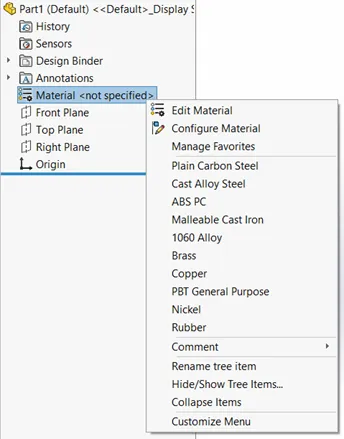
Flyout options for the SOLIDWORKS material favorites
The favorites list can be customized to include more or fewer options, as well as to change the order of materials.
- To modify the material favorites, simply select Manage Favorites from the right-click menu and go to the Favorites tab.
- To add materials to the favorites, search for or select an item from the list on the left. Once highlighted, select Add.
- To move an item up, down, or to remove it from the favorites list, just select the material from the right side of the window and choose the desired command.

Using the Material Library
To select materials other than the favorites, you can access the SOLIDWORKS material library. This will give you the full list of available materials and give additional properties about the material selection.
To access the SOLIDWORKS material library, follow these steps:
- Right-click on Material in the SOLIDWORKS Feature Tree.
- Select Edit Material to open the SOLIDWORKS material library.
- Search for and select the material you want to use.
- Click Apply and close the library.
Within the material library, users may right-click on the materials on the left side to create new libraries, new materials, or add items to the favorites list.
Using the Menu Bar
The final method for modifying a part file material is to use the SOLIDWORKS menu bar at the top of your screen.
To edit the part material from the menu bar, follow these steps:
- Expand the SOLIDWORKS menu bar and select Edit.
- Hover over the Appearance option so the second flyout menu appears.
- Select Material… to launch the material library.

Change Material in SOLIDWORKS Multibody Parts
If the part file contains a multibody part, the material specified in the Material feature is global. This material will apply to all parts that do not have a material applied through the Solid Bodies folder.
To change material for multibody parts, follow these steps:
- Expand the Solid Bodies folder in the SOLIDWORKS Feature Tree.
- Right-click on the body you want to change.
- Select Material and use the favorites or Edit Material options.
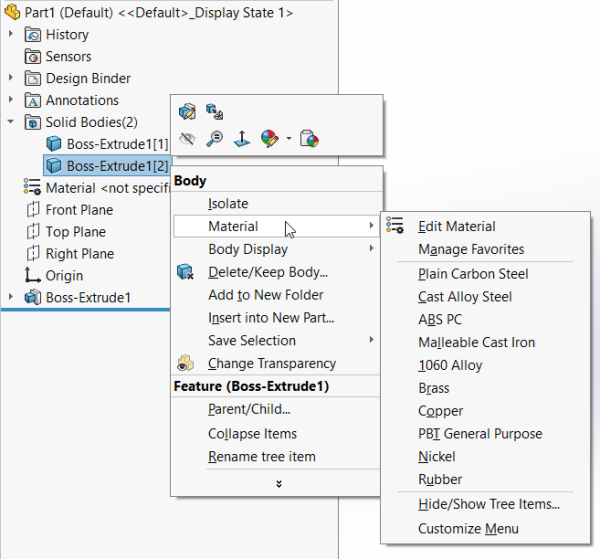
Change Material in SOLIDWORKS Assemblies
Just like for parts, users can interact with the feature tree to pull up the material selections. This again includes a favorites list and access to the Edit Material window. The material for a part can be modified from the assembly tree regardless of how deep in the tree the component is located.
Using the Favorites Menu
This method is almost identical to changing the material in a SOLIDWORKS part. The biggest difference is having to expand the component enough to see the material selections.
To change the material of an assembly component using the favorite menu, follow these steps:
- Expand the SOLIDWORKS assembly component in the Assembly Tree.
- Right-click on Material in the SOLIDWORKS Tree.
- Select a material from the list provided.
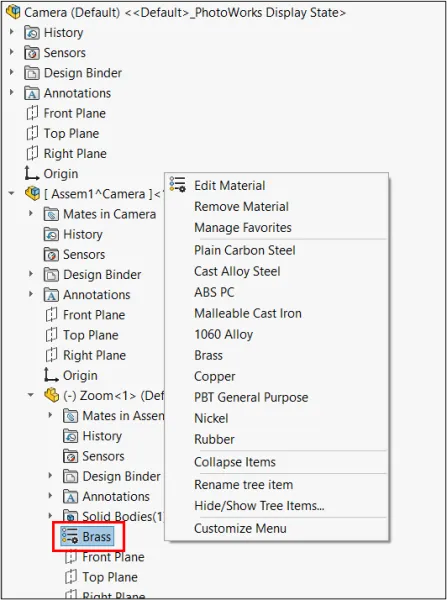
Using the Menu Bar
Editing material through the Menu bar is available at both the part and assembly levels. The difference between the assembly levels is that a part needs to be pre-selected from the assembly tree, or this option will be grayed out. This is no longer a global setting since each material is defined at the part level.
Conclusion
Working with materials in SOLIDWORKS is designed to be as straightforward as possible. With a large, well-organized library, powerful search tools, and the ability to create custom materials when needed, users can quickly find exactly what they need every time.
All materials can have appearance and material property data to help ensure accurate modeling and analysis. Whether updating a part or an assembly, changing material in SOLIDWORKS is a simple workflow, making sure users can make the necessary changes with the least amount of effort required.
To learn more about advanced material options for SOLIDWORKS Simulation, click here.

Related Software
SOLIDWORKS
SOLIDWORKS 3D CAD software includes design, simulation, technical communication, and data management features. Powering innovative design with specific tools that help you work more efficiently so you can make better design decisions.