




 By
By Remote and hybrid work are now a permanent part of how engineering teams operate. While SOLIDWORKS itself runs locally, the overall remote experience depends a lot on several factors, such as licensing, network structure, and how design data is managed and stored.
Suboptimal decisions in any of these areas can lead to slow performance, broken references, version confusion, and increased risk of rework. The best practices for working remotely with SOLIDWORKS are based on real-world customer environments and common challenges that engineering teams see.
Common Remote Engineering Environments
Many organizations operate in a hybrid setup that includes a company office network, remote workers, and sometimes cloud-hosted servers. Engineers may be accessing on-premise servers, cloud infrastructure such as AWS, Microsoft Azure, or other cloud-based tools.

Connections are typically handled through VPN, remote desktop, or direct-to-cloud connections. An optimal setup includes a dedicated data management system such as SOLIDWORKS PDM or 3DEXPERIENCE.
Before choosing a remote work strategy, it’s important to understand where SOLIDWORKS runs, where data lives, and how users connect to it.
Key Factors that Affect Remote Performance
System performance and reliability are determined by the path between the engineer and data, taking into account all aspects of the journey. There are a few key factors and components that affect remote performance.
- System Hardware: Company-issued laptops with certified graphics cards provide better results than personal machines.
- Configured Access: Working directly over VPN, using remote desktop, or connecting through cloud-based platforms will all behave differently.
- Dedicated Data Management: Working with a CAD-aware data management system provides file locking, reference management, and local caching. Environments without formal data management rely on manual coordination and are far more sensitive to latency, conflicts, and user errors.
- Network Infrastructure: Internet speed, latency, connection type, and physical distance to the office or cloud region all affect responsiveness.
Ignoring these factors often leads to slow file opens, rebuild delays, version confusion, and unreliable collaboration.
SOLIDWORKS Licensing Options Effect on Remote Work
Licensing directly affects how and where SOLIDWORKS can be used remotely. Understanding your license type early can avoid unnecessary VPN use and license management issues.
Standalone Licensing
Standalone licenses are node-locked and machine-activated. You can identify a standalone SOLIDWORKS license easily if they have a serial number starting with 0000 or 9000.
Standalone licenses work well for laptops that move between home and office since the license travels with the machine. If switching machines, they require a SOLIDWORKS license transfer between machines, and each machine must have the proper SOLIDWORKS hardware.
Network Licensing
Network licenses rely on a license server and typically require VPN access if working remotely. You can identify a network SOLIDWORKS license easily if they have a serial number starting with 0010 or 9010.
Network licenses are server-based floating licenses, meaning the software can be installed on multiple computers, but only one user can use a license at a time per available seat. Borrowing licenses allows temporary offline use, but borrowing must be planned ahead of time.
SOLIDWORKS Through 3DEXPERIENCE
A third way to license SOLIDWORKS is with named-user, cloud-connected licensing. There is no serial number, but SOLIDWORKS is still installed locally.
Users can log in using a username and password from any supported machine without transferring or borrowing licenses, making it the most flexible option for remote work.
Ways to Use SOLIDWORKS Remotely
There are several common scenarios for working remotely with SOLIDWORKS, each with its own advantages and limitations.
Work Offline
In this scenario, SOLIDWORKS runs locally on a laptop with no connection to company servers. This works well for standalone licenses and short-term tasks, but there is no access to shared data, PDM, or license servers.
File synchronization and version control become manual processes, which increases risk and introduces ambiguity to your data. SOLIDWORKS PDM helps to mitigate this with Offline Mode.
VPN to Office Network
VPN access is one of the most common approaches used when working remotely with SOLIDWORKS, especially in environments with on‑premise licensing or file servers. SOLIDWORKS runs locally, while licenses are accessed through a VPN connection to on-premise servers.
While functional, performance depends heavily on VPN quality and internet speed. Opening and saving large assemblies over VPN is often very slow, and without proper data management, file conflicts are common.
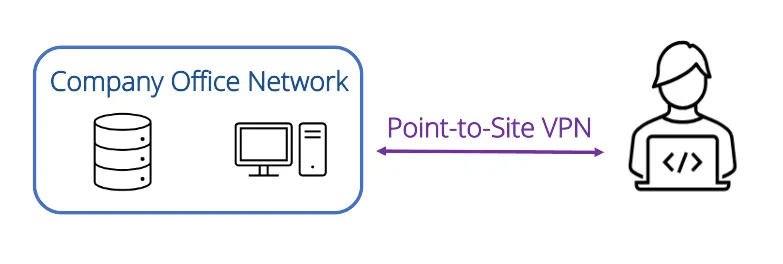
When SOLIDWORKS PDM is used, performance and reliability improve significantly. Files are cached locally on the user’s computer, reducing repeated file transfers over VPN while still maintaining version control, file locking, and reference management.
VPN to Cloud Servers
Some organizations host licensing and file servers in the cloud to support teams working remotely with SOLIDWORKS. Users may be able to connect to the cloud infrastructure directly via VPN rather than routing through the office.
From a user perspective, this can behave like a VPN to office networks. Performance is dependent on internet quality, VPN configuration, and network latency. Without a data management system handling files and caching locally, users typically see significant decreases in speed.
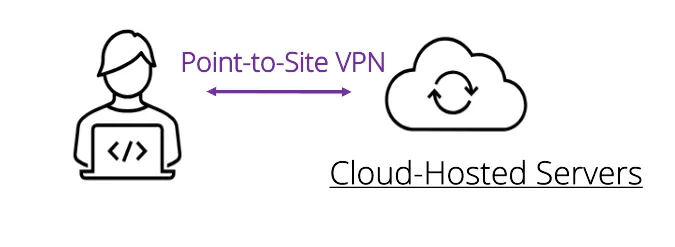
When SOLIDWORKS PDM is used, performance and reliability improve significantly. Files are cached locally on the user’s computer, reducing repeated file transfers over VPN while still maintaining version control, file locking, and reference management.
Remote Desktop to Office Workstation
With a remote desktop, SOLIDWORKS runs on the office workstation, and the user connects to it from a computer at home. Only screen updates, mouse, and keyboard input are transmitted.
This method avoids transmitting large CAD files over VPN and often provides more consistent performance. User experience depends on network configuration, graphics support, and network latency.
3DEXPERIENCE Platform
The 3DEXPERIENCE platform provides cloud-based collaboration while SOLIDWORKS continues to run locally. Licensing, file access, and data management are handled through a named user login and internet connection rather than a VPN or file server.

Similar to SOLIDWORKS PDM, files are locally cached for performance while remaining centrally managed in the cloud. This model is well-suited for remote and hybrid teams, allowing users to work seamlessly from any location while the platform ensures they are connected to the correct data.
Avoid General Cloud File Storage for CAD Data
Many teams attempt to use SharePoint, OneDrive, Dropbox, or similar tools for SOLIDWORKS data. While these platforms are easy to access remotely for regular documents, they are not CAD-aware and not supported by SOLIDWORKS.
These tools do not understand complex file references, rebuild behavior, or revision control. There is no built-in file locking, check-in or check-out, or reference management.

Teams must rely on manual coordination, which often leads to overwritten files, broken assemblies, and duplicated data. These tools are acceptable for non-CAD documents, but they are not a replacement for CAD data management.
Using a CAD-Aware Data Management System
A formal data management system is the single most important factor for successful collaboration when working remotely with SOLIDWORKS. SOLIDWORKS PDM and 3DEXPERIENCE are vastly superior to unmanaged file shares or generic cloud storage.
SOLIDWORKS PDM
SOLIDWORKS PDM provides reliable version control, file locking, reference management, and workflows in a familiar Windows Explorer environment. It can be deployed on-premise with VPN access or hosted on cloud servers (such as AWS or Microsoft Azure), giving teams flexibility without changing how engineers work day to day.
Files are locally cached to support strong CAD performance, while SOLIDWORKS PDM manages versions, references, and access in the background.
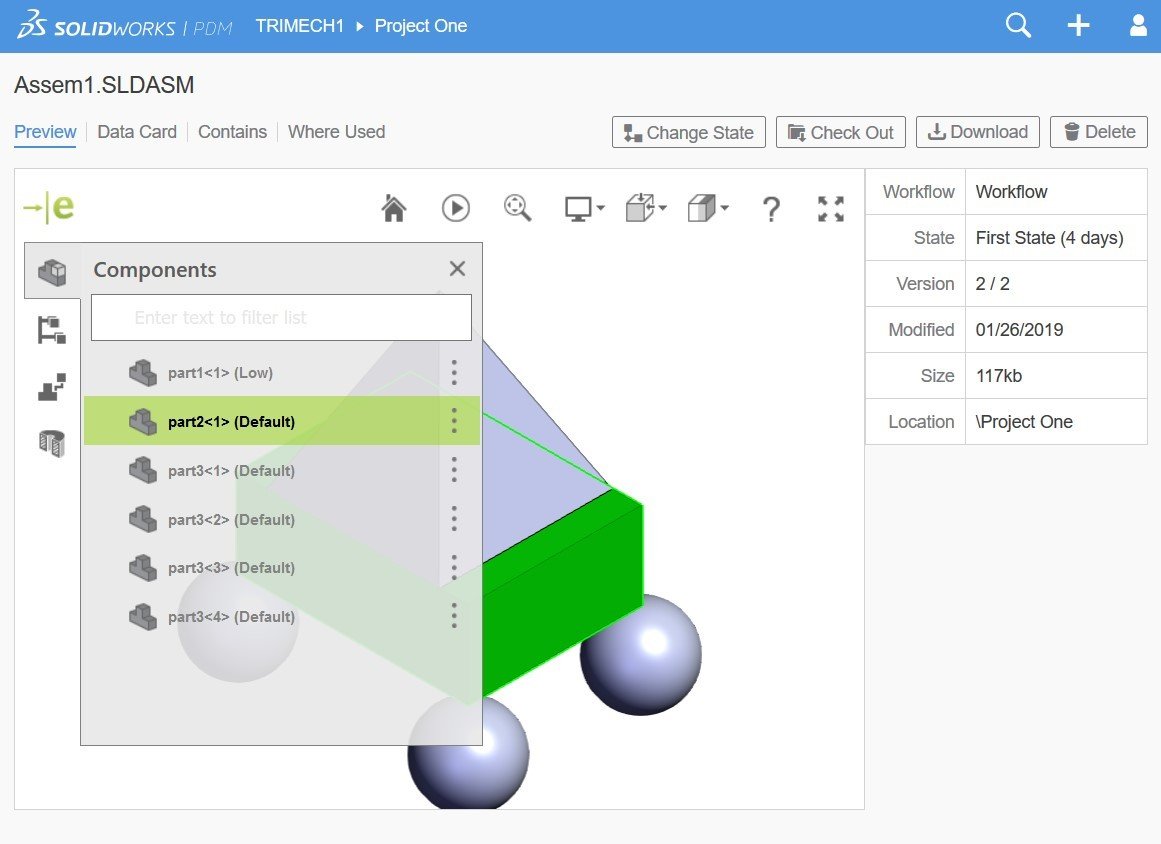
This approach gives remote teams a practical balance of performance and control that aligns well with established SOLIDWORKS remote work best practices.
The 3DEXPERIENCE Platform
The 3DExperience platform provides cloud-native, CAD-aware collaboration. Users work with a desktop-installed SOLIDWORKS license that connects to the 3DEXPERIENCE platform for data management for revision tracking, lifecycle management, and secure file sharing.

Collaboration happens directly from SOLIDWORKS without a VPN connection, file copying, or manual revision control. Local caching ensures good CAD performance while the platform manages synchronization in the background.
Best Practices for Remote Work with SOLIDWORKS
Successful remote work with SOLIDWORKS requires more than just remote access. When performance, stability, and data integrity are aligned, remote users can work just as effectively as if they were in the office.
For reliable remote work with SOLIDWORKS:
- Use licensed, certified hardware whenever possible.
- Choose a remote access method that minimizes file transfer over VPN.
- Understand your SOLIDWORKS license type and plan remote usage accordingly.
- Avoid storing SOLIDWORKS files in non-CAD cloud storage platforms or working directly across a VPN to your server.
- Implement a CAD-aware data management solution such as SOLIDWORKS PDM or 3DEXPERIENCE.
- Focus on reducing risk and improving efficiency, not just enabling access.
Remote work can be as productive as working in the office when the right architecture and tools are in place. When engineers are no longer managing files, connections, and workarounds, they can focus on design itself.
Need Guidance for Working Remotely with SOLIDWORKS?
Working remotely with SOLIDWORKS requires more than simply connecting from a different location and hoping performance holds up. Hardware, licensing, network architecture, and data management all play a role in determining whether remote work is productive or frustrating.
Many organizations are surprised to learn that small changes to how data is stored, accessed, or managed can have significant impacts on performance and reliability. TriMech helps organizations review their existing remote work setup, including SOLIDWORKS licensing, data management practices, and access methods, to identify what is working and where improvements can be made.
With decades of experience supporting SOLIDWORKS, data management, and modern remote engineering environments, we can reduce risk, improve performance, and ensure your team can work effectively from anywhere.
Related Content

SOLIDWORKS vs Siemens NX | Your Guide for Choosing a CAD Software Platform
Choosing SOLIDWORKS vs Siemens NX requires examining what your organization currently requires and how you plan to operate in the future. This guide explores where these tools overlap, how they differ, and what considerations can help determine the best fit for your organization.

Best CAD Startup Programs for Hardware Startups: How to Choose the Right One
For hardware startups, choosing a CAD tool isn’t just a software decision. It’s a decision that affects how fast you iterate, how your team collaborates, how easily you manufacture, and how painful (or less painful) your next stage of growth will be. With multiple CAD startup programs on the market, the question isn’t “Which CAD…
Everything You Need To Know About Switching to SOLIDWORKS | Your Guide to Choosing the Best CAD Platform
Switching to SOLIDWORKS and moving to the best CAD platform is the best decision your company can make. Not only are you switching to the industry-leading CAD ecosystem, but you are also joining the ranks of some of the best engineering teams around the globe.